
OpenAI’s MCP Extensions put plugins in the ChatGPT sidebar
OpenAI on September 30 published MCP Extensions on GitHub. It is an Apache 2.0 project that adds ChatGPT-specific capabilities to the Model Context Protocol, so a plugin can sit in the sidebar, open files and work from the message box the way built-in features do. Which SDK you get depends on your server’s language. If your MCP server is written in Python, the openai-mcp-extensions package covers the server only. The TypeScript package, @openai/mcp-extensions, covers both MCP servers and Apps.
The repo describes four extensions. Each one is shown in a demo plugin called Bits & Bolts:
- Sidebar entrypoints: users open your app straight from the ChatGPT sidebar.
- File extension handlers: when a user opens a file type you support, ChatGPT shows your custom viewer.
- Composer mentions: from the composer, the box where users type their messages, they can search your plugin’s resources and add references to a message.
- Extended forms: richer input than plain text. In the demo, the user picks a CAD part from thumbnail choices.
The extensions build on a plugin you already have. OpenAI’s getting-started steps start with creating a plugin, following its plugin documentation. Next you add the SDK for your language to your MCP server, and then you read the spec, which lists the supported extensions.
They also build on what came before. When OpenAI introduced apps in ChatGPT, it presented the Apps SDK, then in preview, as an open standard built on MCP, and developers tested their apps in ChatGPT’s Developer Mode. The new extensions go a step further into ChatGPT’s own interface: the sidebar, the file viewer and the composer. They shipped the same day as OpenAI’s DevDay 2026 pitch that developers can launch native experiences straight to ChatGPT’s 1.2B weekly users.
To see all four extensions at work before you write any code, install Bits & Bolts Remote from the plugin directory, then select it in the sidebar to open its Parts Library.
Up next
Anthropic’s Claude.dev hub ships guides and easter eggs, Video
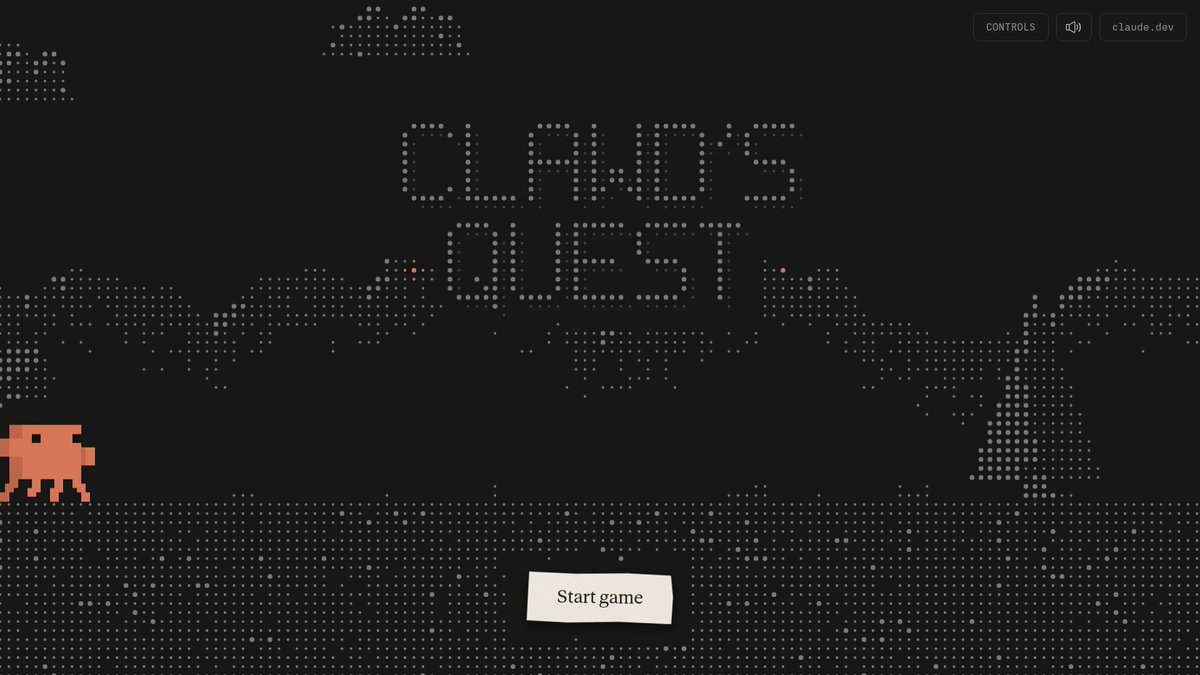
Anthropic gave developers a single address, Claude.dev, for engineering deep dives plus Claude Code and API guides, and the announcement promises “some fun easter eggs” without saying where they’re hidden.
Related stories
- OpenAI gives its Open Responses API spec to the AAIF
- Claude plugins get a portal as MCP usage climbs 110x
- OpenAI opens ChatGPT’s 1.2B weekly users to developers
- Codex harness goes managed in the new Agents API
- Two sample agents run code to drive browser and desktop
- WebMCP contest puts $35,000 behind agent-ready sites
Comments
No comments yet. Be the first.
Join the conversation
Sign in to leave a comment. It appears after moderation.